💡 Challenge
You want to overwrite existing files in SharePoint using Power Automate’s Create File action – but the Overwrite toggle is missing or greyed out!
✅ Solution
Disable the Allow Chunking setting in your SharePoint connector – this instantly unlocks the Overwrite option.
🔧 How It’s Done
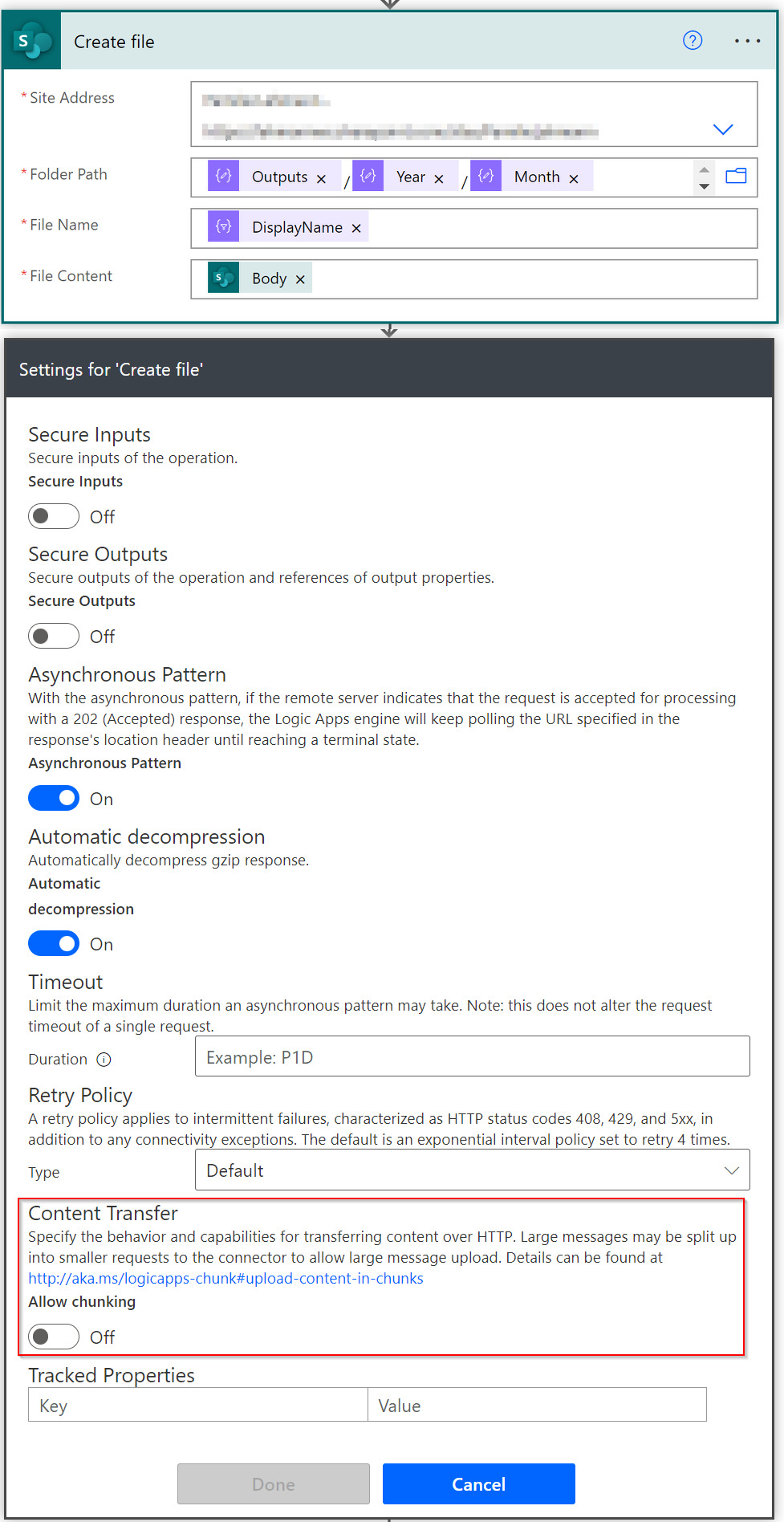
- Open your Create File action in Power Automate.
- Click Settings (top right of the action).
- Scroll to Content Transfer section.
- Set Allow Chunking to Off.
- Close Settings – the Overwrite toggle now appears in your action!
⚠️ Trade-offs
🔸 100 MB Limit: With chunking disabled, files larger than 100 MB will fail. Keep chunking enabled for large file scenarios.
🔸 Version History: Overwriting replaces the file entirely. Enable SharePoint versioning if you need rollback capability.
🎉 Result
Your files get cleanly replaced without duplicates – no delete-then-create workarounds needed.
🌟 Key Advantages
🔸 One-Click Fix: A simple settings toggle – no extra actions in your flow.
🔸 Faster Flows: Skip the “check if exists → delete → create” dance.
🔸 Cleaner Libraries: No more `filename(1).docx` clutter.
🛠️ FAQ
1. Why is the Overwrite option hidden by default?
Microsoft enables chunking by default to support large files (up to 250 MB). Since chunked uploads can’t overwrite, the toggle is hidden until you disable chunking.
2. What happens if my file exceeds 100 MB?
The flow will fail with a size limit error. For files larger than 100 MB, keep chunking enabled and use a delete-then-create pattern instead.
3. Does overwriting preserve sharing permissions?
Yes, overwriting maintains existing sharing links, permissions, and metadata. The file ID stays the same.
4. Can I use this for OneDrive too?
OneDrive for Business has the Overwrite toggle available by default – no settings hack needed there!

Marcel Lehmann
 Microsoft MVP


